What you need
- The board: a Waveshare ESP32-S3-Touch-AMOLED-1.75C. Its round 1.75-inch AMOLED touch screen, microphones, speaker, motion sensor, side button and battery are the puck.
- Somewhere for the hub: a NAS or other x86-64 machine that runs Docker (Synology’s Intel and AMD “plus” models do), or a Windows PC.
- An Anthropic API key for Claude. Use one with a spending limit.
- A way to hear and speak. Whisper and Windows voices need no key. Deepgram (to hear) and Azure (to speak) are what the project recommends.
- To flash the puck: ESP-IDF 5.5 and a USB cable. To build the hub from source: the .NET 10 SDK.
1. Get the code
git clone https://github.com/tank104/Pucksley.git
cd Pucksley
2. Run the hub
On a NAS, in Docker
docker compose -f hub/docker-compose.yml up -d --build
Host networking is needed, for finding the pucks and the Sonos speakers. Settings live in hub/pucksley-data/. On a
Synology, create a project from hub/docker-compose.yml in
Container Manager. The container has everything except the Windows plugins.
On a Windows PC
dotnet run --project hub/src/Hosts/Pucksley.TrayOr build it once and run the app:
./scripts/build.ps1
dist/Pucksley/Pucksley.exe
A tray icon appears and the hub’s page opens at http://127.0.0.1:8765. From another computer, use the link with
?key= that the tray menu and the log show.
3. Set up the hub
In the hub’s page:
- Assistant: paste your Anthropic API key. The model defaults to Claude Opus 5.5 at low effort, which keeps spoken answers quick.
- Voice: how it hears you and how it speaks. Deepgram (Nova-3) to hear and Azure to speak, with the Australian
voice
en-AU-AnnetteNeural, is the recommended pair; add their keys on the Plugins page. Whisper runs on the hub with no key (it downloads a 142 MB model the first time, and is slow on a NAS’s processor). Windows voices work straight away; OpenAI, ElevenLabs and Azure sound far better. - Household: where you live (for the weather and local answers), the time zone, and a few lines about the home: who lives here, which speaker is where. Claude reads them with every question.
Use Talk on the page to try the whole loop with your browser’s microphone before there is a puck.
4. Flash the puck
cd firmware
idf.py set-target esp32s3        # once
idf.py -p COM5 flash             # your port; hold BOOT while plugging in if it will not enter download mode
To keep a copy of everything on the board first (all 16 MB):
python -m esptool --chip esp32s3 --port COM5 read_flash 0 0x1000000 board-backup.bin5. Wi‑Fi and approval
- Plugged into the hub’s PC by USB: the hub trusts it straight away and lists it under Pucks. Use “Wi‑Fi setup over USB” there to send it your network; it joins, finds the hub by itself, and moves to Wi‑Fi.
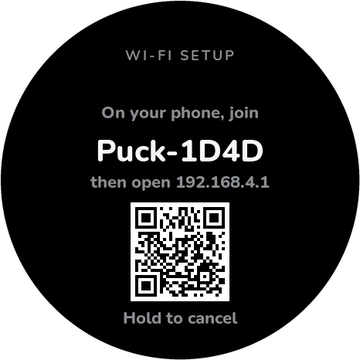
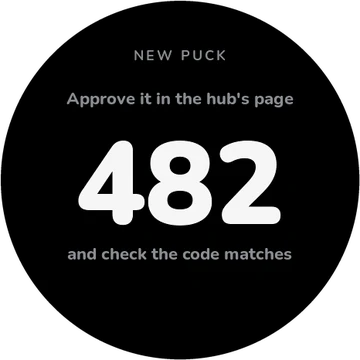
- Without a PC: a puck with no Wi‑Fi opens its own network, Puck‑XXXX, and shows a QR code. Join it from your phone and the setup page opens (or go to 192.168.4.1). Pick your network and type the password. The puck then shows three digits, and the hub’s page asks you to approve it with the same code.
Give each puck a name and a room on the hub’s page: “turn the music down” from the kitchen puck then means the kitchen speaker.
6. Plugins
These come with the hub. Each has a card on its Plugins page.
| Plugin | To set up | What it does |
|---|---|---|
| Sonos | Nothing: it finds your speakers on the network. | Rooms, volume, grouping, favourites, the TV input and line-in, a sleep timer, announcements. Single Spotify tracks on Sonos need your Sonos Spotify account number: add any Spotify playlist to Sonos Favourites once and the hub learns it. |
| Spotify | Create an app at developer.spotify.com (Web API), add the redirect URI shown on the plugin’s card, paste the Client ID, then press Connect. | Search and play anything on any device, Sonos rooms included; queue, like, shuffle, move the music, and “what was that song?”. Needs Premium. |
| Smart TVs | Add the TV (its type, address, and MAC address for turning it on), press Pair, and accept on the TV. | LG webOS, Samsung (Tizen) and Roku. |
| Smart plugs | Add each plug (its type and address). Tapo and Kasa need your TP-Link login. | Shelly (Gen1 to Gen3), TP-Link Kasa, Tapo, or any on/off URL. |
| Home Assistant | Its URL and a long-lived access token. | Find and control anything, run scenes and scripts, and “ask Home Assistant” for whatever the tools do not cover. |
| Heating | The controller’s API URL and a token. | Written for one underfloor heating controller’s web API (the README has the details); through Home Assistant otherwise. |
| Weather | Nothing: it uses the household’s location. | Open-Meteo, no key: now, hourly and seven days. |
| Timers | Nothing. | Timers, alarms (repeating too) and reminders, spoken and shown on the puck that set them. |
| Memory and lists | Nothing. | “Remember that…” (always in Claude’s context), and shopping and to-do lists. |
| Custom actions | Define them on the plugin’s card. | No-code tools: call a URL (webhooks, Node-RED, IFTTT) or run a script, with parameters. |
| MCP servers | Add a command or a URL. | Any Model Context Protocol server’s tools become Claude’s tools. |
| This PC | Nothing (on a Windows hub only). | Volume, media keys, what is playing, audio outputs, per-app volume, apps and files, lock, sleep and shut down (it asks first), “what’s on my screen?”, the clipboard, typing, dark mode. |
| Speech | API keys on their cards. | Deepgram to hear; Azure, OpenAI (and compatible: Groq, local Speaches or Kokoro), ElevenLabs, local Whisper and Piper, and Windows voices. |
| Talking face | Openspline on a PC with an NVIDIA GPU. | While Pucksley speaks, the puck shows a face animated live to the voice. Pick one of 20 faces, or give it your own picture. |
7. The PC, with the hub on a NAS
The PC’s controls (its volume, apps and power) can only run on the PC. With the hub on a NAS, the PC’s app lends it just those:
- On the PC, run the tray app. In its page, under Household and More than one hub, turn off “Pucks connect to this hub”, turn on “Share this hub’s tools”, and list
pc-audioandpcunder “Only these plugins”. The page then shows an address and a key line. - On the NAS hub’s page: Plugins, MCP servers, add a server: name
pc, transporthttp, that address, and the key line under Headers. - Allow the app through Windows Firewall on private networks, and give the PC a fixed address in the router.
Anything drastic, like shutting the PC down, is still confirmed on the puck.
When the hub is off
With an Anthropic key and a cloud speech service set up on the hub, the hub gives each puck a copy when it connects. From then on, if the puck cannot reach a hub, a tap still works: it listens, asks Claude (with web search) and answers in the cloud voice. The house, the music and the PC wait for the hub. The keys are kept on the puck, so use ones you can revoke.
Write your own plugin
A plugin is a C# class whose methods carry [Tool] attributes. Build it, drop the DLL into the hub’s
plugins folder, and Claude can use it. For anything simpler, a custom action or an MCP server needs no code at all.
The plugin guide has the details, and the
protocol and
architecture notes say how the puck and hub talk.
Build and test
./scripts/build.ps1                      # dist/Pucksley (self-contained hub) + dist/firmware
dotnet test hub/Pucksley.sln             # the hub’s tests
cd firmware; idf.py build                # the firmware
cd firmware/tools/sim; ./build.sh; ./build/sim.exe   # draws every face to tools/sim/out/*.png
cd firmware/tools/test; ./run.sh         # desktop tests for the firmware’s plain logic
Where it is up to
Pucksley is young, and moving quickly. The README keeps an honest list of what has been checked and what has not: start there before you buy a board, and expect rough edges.
Help and contributing
Something did not work, or could be better? Open an issue. Pull requests are welcome for the puck, the hub and its plugins, and for this website. Everything is under the MIT licence.